Merchant User Guide: Managing Your Stock
Welcome to your Inventory Dashboard. This guide will help you manage your products and track stock levels using the simple interface shown below.
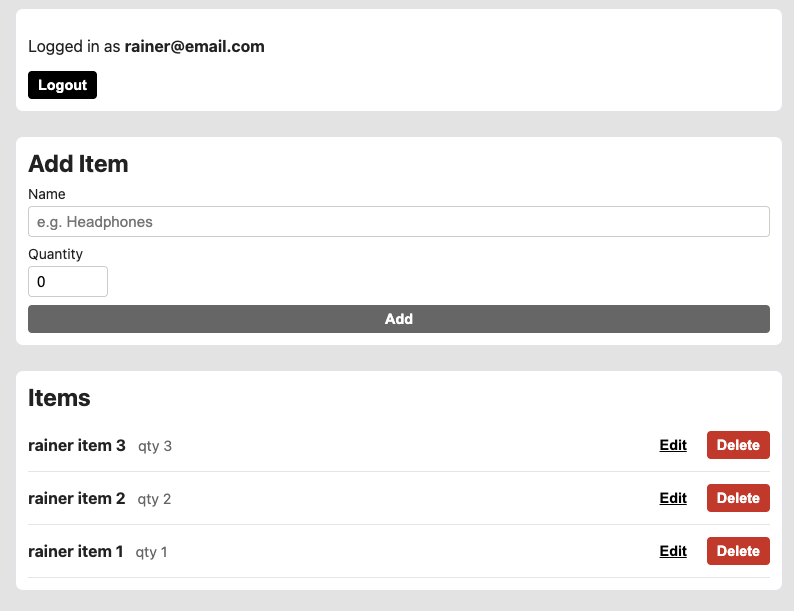
Your dashboard features a clear, top-down view of your current session and inventory items.
Your Session
At the very top of the screen, you can verify which account you are currently using.
- Logged in as: Displays your registered email address.
- Logout: Click this black button to securely end your session and protect your data.
Adding a New Product
To add a new item to your records, use the Add Item section in the middle of the screen:
- Name: Type the name of the product (e.g., "Headphones") into the text field.
- Quantity: Use the number box to set your starting stock level.
- Submit: Click the wide grey Add button.
Your new item will immediately appear in the list below.
Managing Your Items
All your saved products are listed at the bottom under Items. Each entry shows the item name and current quantity (e.g., qty 3).
Updating & Removing Items
To the right of every item, you have two primary actions:
- Edit: Click this to modify the name or quantity of an existing item.
- Delete: Click the red button to permanently remove an item from your inventory.
Clicking Delete will remove the item immediately. Ensure you no longer need the record before confirming.
Best Practices
- Consistent Naming: Use clear names to keep your list organized and searchable.
- Regular Updates: Update your quantities whenever you receive new stock to keep your dashboard accurate for your team.